This guide demonstrates how to import an XML file created in diagrams.net (formerly draw.io) and extract the necessary properties to construct an Entity Relationship Diagram (ERD). The process focuses on identifying and utilizing specific data embedded within the XML structure to generate accurate and meaningful diagram elements.
To begin, a new diagram was created using diagrams.net:

Then, in this diagram, we have added specific data to the shapes we used in order to identify these objects:
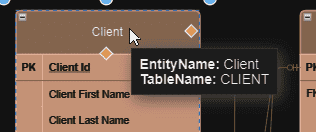
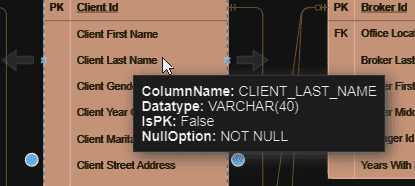
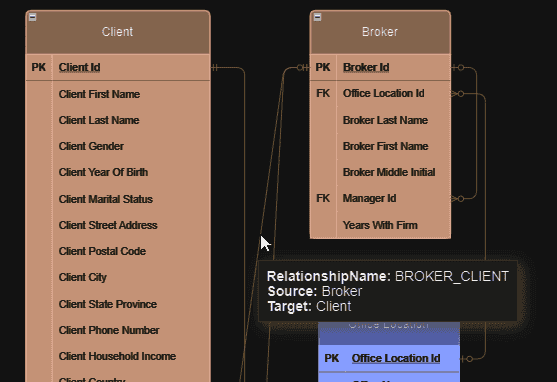
Even though the relationships are linked to the entities, we have added Source & Target properties since the object dropped on the diagram can be linked to many different connection points belonging to various shapes (entity, attribute, PK, FK, etc.).
Finally, we exported our diagram as XML (no compression, current page):

The XML file is too verbose to be nicely shared as text below. You can download it from here.
Here is the script of the macro which can use this XML file:
'#Language "WWB-COM"
''MACRO TITLE: wImportDrawIO
' MACRO VERSION: 1.1
'
' This macro imports Entities Attributes and relationships from a draw.io XML file
'with custom properties
'
' Known limitations:
'- Specific data are required to import the objects
'- Only the first page is imported
'- Compressed XML format is not supported
'
' Blog post: https://blog.idera.com/database-tools/er-studio-data-architect/macros-import-objects-from-a-diagrams-net-xml-file/
'
'-----------------------------------------------------------------------------------

Option Explicit

Const TITLE$ = "wImportDrawIO"
Dim MyModel As Model

Sub Main

	Debug.Clear

	Begin Dialog UserDialog 720,105,TITLE,.DlgFunc ' %GRID:10,7,1,1
		Text 10,21,120,14,"File Path:",.txtFile,1
		TextBox 150,21,450,21,.edFileName
		PushButton 610,21,90,21,"Select File",.btnSelectFile
		PushButton 260,70,90,21,"Import",.btnImport
		CancelButton 380,70,90,21,.btnExit
	End Dialog
	Dim dlg As UserDialog

	If Dialog(dlg) = 0 Then Exit Sub

End Sub

Private Sub DoImport(xmlFilename$)

#Region "Variables"
	Dim diag As Diagram
	Dim MySubModel As SubModel
	Dim MyEntity As Entity
	Dim MyEntityDisplay As EntityDisplay
	Dim MyAttribute As AttributeObj
	Dim MyRelationship As Relationship
	Dim MyShape As Shape
	Dim MyShapeDisplay As ShapeDisplay

	Dim xml$
	Dim cptEntities%, cptAttributes%, cptRelationships%, cptShapes%
	Dim objStream
	Dim oXml As MSXML2.DOMDocument60
	Dim allItems, oneItem, oneNode As IXMLDOMNode
	Dim myProject$, wentity$, wtable$, wid$, wx%, wy%, ww%, wh%
	Dim wattribute$, wcolumn$, wdatatype$, wnull$, wpk As Boolean
	Dim wname$, wsource$, wtarget$, wrolename$, wstyle$

	Dim datatype$, datawidth%, nPos%, s$, nSepPos%, datascale%

	Dim StartTime!
#End Region

	StartTime = Timer

	On Error GoTo Error_detected

	' Disable Tree updates: it doesn't work on the DD treeview
	DiagramManager.EnableScreenUpdateEx(False, False)

	Set diag = DiagramManager.NewDiagram

#Region	"XML"
	' Load XML from UTF-8 file
	Set objStream = CreateObject("ADODB.Stream")

	objStream.CharSet = "utf-8"
	objStream.Open
	objStream.LoadFromFile(xmlFilename)

	xml = objStream.ReadText()

	objStream.Close
	Set objStream = Nothing

	' Parse XML
	Set oXml = New MSXML2.DOMDocument60

	If oXml.loadXML xml Then

		Debug.Print "XML loaded"

		oXml.async = False
		oXml.setProperty "SelectionLanguage", "XPath"
		Set allItems = oXml.selectNodes("//mxfile")
#End Region
		If allItems.length = 0 Then

			MsgBox "Root node not found!", vbExclamation, TITLE
			DiagramManager.EnableScreenUpdateEx(True, True)
			Exit Sub

		Else

			Set oneItem = oXml.selectSingleNode("mxfile/diagram")

			If oneItem Is Nothing Then

				DiagramManager.EnableScreenUpdateEx(True, True)
				Exit Sub

			Else

				' Get the Page name
				myProject = GetAttributeValue(oneItem, "name")
				diag.ProjectName = myProject
				diag.CopyrightYear = "" & Year(Now)

			End If

		End If

#Region "object"
		' Search specific nodes
		Set allItems = oneItem.selectNodes("mxGraphModel/root/object")

		If allItems.length = 0 Then

		   Debug.Print "Unknown path"
		   MsgBox "object not found!", vbExclamation, TITLE

		Else

			Const UNKNOWN$ = "Unknown"

			Set MyModel = diag.ActiveModel
			Set MySubModel = MyModel.ActiveSubModel

			' Name compartments are displayed
			MySubModel.ShowEntityNameCompartment = True
			MySubModel.PrimaryKeyFont.Bold = True

			' Initialize counters
			cptEntities = 0
			cptAttributes = 0
			cptRelationships = 0
			cptShapes = 0

			' Loop all matching nodes
			For Each oneItem In allItems

				' Check if the current XML node has an attribute "TableName"
				If GetAttributeValue(oneItem, "TableName") <> "" Then

					' ENTITY
					wentity = GetAttributeValue(oneItem, "label")
					wtable = GetAttributeValue(oneItem, "TableName")
					wid = GetAttributeValue(oneItem, "id")

					' Required properties are available
					If wentity <> "" And wtable <> "" Then

						Set oneNode = oneItem.selectSingleNode("mxCell").selectSingleNode("mxGeometry")

						If Not oneNode Is Nothing Then

							wx = CInt(GetAttributeValue(oneNode, "x"))
							wy = CInt(GetAttributeValue(oneNode, "y"))
							ww = CInt(GetAttributeValue(oneNode, "width"))
							wh = CInt(GetAttributeValue(oneNode, "height"))

						Else

							wx = 0
							wy = 0
							ww = 0
							wh = 0

						End If

						' Create the Entity
						Set MyEntity = MyModel.Entities.AddEx(wx, -wy)
						Debug.Print "ENT:" & vbTab & wentity
						cptEntities += 1
						MyEntity.EntityName = wentity
						MyEntity.TableName = wtable

						Set MyEntityDisplay = MySubModel.EntityDisplays(wentity)

						' Set size
						MyEntityDisplay.HorizontalSize = ww
						MyEntityDisplay.VerticalSize = wh

						' Get object ID
						If wid <> "" Then

							' Get the main color of the object
							MyEntityDisplay.BackgroundColor = GetColor(oXml, wid)

						End If

					End If

				ElseIf GetAttributeValue(oneItem, "ColumnName") <> "" Then

					' ATTRIBUTE
					wattribute = GetAttributeValue(oneItem, "label")
					wcolumn = GetAttributeValue(oneItem, "ColumnName")
					wdatatype = GetAttributeValue(oneItem, "Datatype")
					wnull = UCase(GetAttributeValue(oneItem, "NullOption"))
					wpk = UCase(GetAttributeValue(oneItem, "IsPK")) = "TRUE"

					' Parse the datatype value
					nPos = InStr(wdatatype, "(")
					If nPos = 0 Then
						datatype = wdatatype
						datawidth = 0
					Else
						datatype = Mid(wdatatype, 1, nPos - 1)
						wdatatype = Mid(wdatatype, nPos +1, Len(wdatatype))
						nPos = InStr(wdatatype, ")")
						s = Mid(wdatatype, 1, nPos - 1)
						nSepPos = InStr(s, ",")
						If nSepPos = 0 Then
							datawidth = Mid(s, 1, nPos - 1)
							datascale = 0
						Else
							datawidth = Mid(s, 1, nSepPos - 1)
							datascale = Mid(s, nSepPos + 1, Len(wdatatype))
						End If
					End If

					' Create the Attribute
					Set MyAttribute = MyEntity.Attributes.Add(wattribute, wpk)
					Debug.Print "ATT:" & vbTab & MyAttribute.AttributeName
					cptAttributes += 1

					MyAttribute.ColumnName = wcolumn
					MyAttribute.Datatype = datatype
					MyAttribute.DataLength = datawidth
					MyAttribute.DataScale = datascale
					MyAttribute.NullOption = wnull

				ElseIf GetAttributeValue(oneItem, "RelationshipName") <> "" Then

					' RELATIONSHIP
					wname = GetAttributeValue(oneItem, "RelationshipName")
					wsource = GetAttributeValue(oneItem, "Source")
					wtarget = GetAttributeValue(oneItem, "Target")
					wrolename = GetAttributeValue(oneItem, "Rolename")
					wstyle = GetAttributeValue(oneItem.selectSingleNode("mxCell"), "style")

					' Required properties are available
					If wname <> "" And wsource <> "" And wtarget <> "" Then

						If wrolename = "" Then

							' Create the Relationship
'							Set MyRelationship = MyModel.Relationships.Add(wsource, wtarget, GetRelationshipType(wstyle))
							Set MyRelationship = MyModel.Relationships.AddWithUnification(wsource, wtarget, GetRelationshipType(wstyle))

						Else

							' Create the Relationship with a specific Attribute name
							Set MyRelationship = MyModel.Relationships.AddWithRoleName(wsource, wtarget, GetRelationshipType(wstyle), wrolename)

						End If

						If Not MyRelationship Is Nothing Then

							MyRelationship.Name = wname
							Debug.Print "RS: " & vbTab & wname
							cptRelationships += 1

						End If

					End If

				Else

					' UNKNOWN: Creating shape is possible
					wname = GetAttributeValue(oneItem, "label")

					' Required properties are available
					If wname <> "" Then

						Set oneNode = oneItem.selectSingleNode("mxCell").selectSingleNode("mxGeometry")

						If Not oneNode Is Nothing Then

							wx = CInt(GetAttributeValue(oneNode, "x"))
							wy = CInt(GetAttributeValue(oneNode, "y"))
							ww = CInt(GetAttributeValue(oneNode, "width"))
							wh = CInt(GetAttributeValue(oneNode, "height"))

						Else

							wx = 0
							wy = 0
							ww = 0
							wh = 0

						End If

						If ww <> 0 And wh <> 0 Then

							Set MyShape = MyModel.Shapes.AddWithPosition(wname, wname, 2, wx, -wy)
							Debug.Print "SH: " & vbTab & MyShape.Name
							cptShapes += 1

							Set MyShapeDisplay = MySubModel.ShapeDisplays(MyShape.Name)

							If Not MyShapeDisplay Is Nothing Then

								DiagramManager.EnableScreenUpdateEx(True, True)
								' Set size
								MyShapeDisplay.HorizontalSize = ww
								MyShapeDisplay.VerticalSize = wh
								' Justification
								MyShapeDisplay.HorizontalJustification = 2 ' Center
								MyShapeDisplay.VerticalJustification = 2 ' Middle
								DiagramManager.EnableScreenUpdateEx(False, False)

							End If

						End If

					End If

				End If

			Next
#End Region

		End If

		DiagramManager.EnableScreenUpdateEx(True, True)

		MsgBox "Import completed! " & Format((Timer - StartTime) / 86400, "hh:mm:ss") & vbCrLf & vbCrLf & cptEntities & " elements created" & vbCrLf & cptAttributes & " attributes created" & vbCrLf & cptRelationships & " relationships created" & vbCrLf & cptShapes & " shapes created", vbInformation, TITLE

	Else

		MsgBox "XML can not be loaded!" & vbCrLf & xmlFilename, vbExclamation, TITLE

	End If

	Exit Sub

Error_detected:
	Debug.Print "Error occured!" & IIf(DiagramManager.GetLastErrorCode <> 0, vbCrLf & DiagramManager.GetLastErrorString(), "")
	Debug.Print
	Resume Next
	DiagramManager.EnableScreenUpdateEx(True, True)

End Sub

Private Function GetRelationshipType%(style$)

	' Need to be extended with the other shapes you may use
	If InStr(style, "endArrow=ERzeroToMany;startArrow=ERzeroToOne;") > 0 Then

		GetRelationshipType = 3

	ElseIf InStr(style, "endArrow=ERzeroToMany;startArrow=ERmandOne;") > 0 Then

		GetRelationshipType = 1

	Else

		GetRelationshipType = 2

	End If

End Function

Private Function GetColor&(ByRef oXml As MSXML2.DOMDocument60, id$)

	Dim selectedNodes, node As IXMLDOMNode
	Dim s$

	GetColor = vbWhite

	' Search the nodes linked to the Object
	Set selectedNodes = oXml.selectNodes("//mxCell[@parent='" & id & "']")

	' Loop through the nodes
	For Each node In selectedNodes

		s = GetAttributeValue(node, "style")
'		s = Mid(s, InStr(s, "strokeColor=") + 13)
		s = Mid(s, InStr(s, "fillColor=") + 11)

		s = Left(s, InStr(s, ";") - 1)
		'Debug.Print s

		If Len(s) = 6 Then

			GetColor = RGB(Val("&H" & Mid(s, 1, 2)), Val("&H" & Mid(s, 3, 2)), Val("&H" & Mid(s, 5, 2)))
			Exit For ' Color has been found

		End If

	Next node

End Function

Private Function GetAttributeValue$(node As IXMLDOMNode, att$)

	'
	GetAttributeValue = ""
	On Error Resume Next
	If Not node.attributes.getNamedItem(att) Is Nothing Then

		GetAttributeValue = Trim(node.attributes.getNamedItem(att).text)

	End If

End Function

#Region "DialogFunc"
Rem See DialogFunc help topic for more information.
Private Function DlgFunc(DlgItem$, Action%, SuppValue&) As Boolean

	Dim fileName$
	Dim fileExt$

	Select Case Action%
	Case 1 ' Dialog box initialization

'		DlgText("edFileName", "C:\Users\William\Documents\ERStudio Data Architect 20.1\Tests\GIM.drawio.xml")

	Case 2 ' Value changing or button pressed

		Select Case DlgItem$
			Case "btnSelectFile"

				fileName = GetFilePath(,"draw.io XML File (*.xml)|*.xml|All Files (*.*)|*.*",,"Select File", 0)

				If (filename <> "") Then
					DlgText("edFileName", filename)
				End If

				DlgFunc = True
				Exit Function

			Case "btnImport"

				DlgEnable("btnImport", False)
				DlgEnable("btnExit", False)
				DlgEnable("btnSelectFile", False)

				filename = DlgText("edFileName")

				If Len(filename) = 0 Then
						MsgBox "You must specify a file.", vbExclamation, TITLE
						DlgFunc = True
						Exit Function
				Else
					If Not FileExists(filename) Then
						MsgBox "Specified file does not exist.", vbExclamation, TITLE
						DlgFunc = True
						Exit Function
					Else
						fileExt =  Right$(filename, Len(filename) - InStrRev(filename, "."))
						If (LCase(Left(fileExt, 3)) <> "xml") Then
							MsgBox("You can only select an XML file!", vbExclamation, TITLE)
							Exit Function
						End If
					End If
				End If

				 DoImport(fileName)

				DlgFunc = False
				Exit Function

			Case "btnExit"

				DlgFunc = False
				Exit Function

		End Select
	Case 3 ' TextBox or ComboBox text changed
	Case 4 ' Focus changed
	Case 5 ' Idle
		Rem DlgFunc = True ' Continue getting idle actions
	Case 6 ' Function key
	End Select

End Function
#End Region

Private Function FileExists(ByVal fileName As String) As Boolean

	FileExists = (Dir(filename) <> "")

End Function
This macro utilizes a reference to the Microsoft XML 6.0 library. To add this reference to your macro, follow these steps:
From there, you can locate and select the Microsoft XML 6.0 reference to add it to your macro environment.

The References dialog shows the current macro/module/project’s references. You need to add the Microsoft XML, v6.0 (6.0):
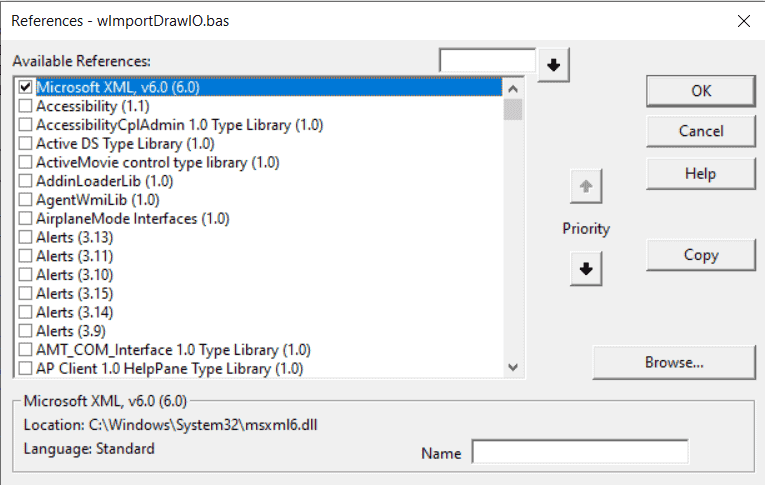
After adding the reference, the macro should run without raising an error for a valid data type.Using this macro with the shared XML file, generates a model like this:

This video shows how to create a macro from a script in ER/Studio Data Architect.
Read our previous related post on importing Logical and Physical Data Models from Microsoft Visio to ER/Studio Data Architect
The macro depends on the data specified on each object. It does the job for this XML file. Using it with your own XML exports would likely require updating the macro as well. The script can be modified to perfectly meet your expectations, or simply copy the parts of this one to your own macros.
For more information on ER/Studio’s Macros, check out our page!